TL;DR
You can't send WhatsApp messages directly from Excel, but you can easily do it using a bulk messaging tool, a Chrome extension, or the WhatsApp Business API. Simply prepare your Excel file with properly formatted phone numbers, export it as a CSV, upload it to your preferred platform, personalize messages using Excel columns, and send your campaign safely to opted-in contacts.
Still copying and pasting WhatsApp messages one contact at a time? If customer numbers are saved in Excel and you want to share them all at once, there's a much faster way.
Manually typing each number isn't feasible. The good news is that you can add an audience through Excel and send bulk WhatsApp messages quickly and safely using the right tools.
Sounds interesting, but you're not sure about the process, so dive in and learn 3 different methods of send WhatsApp through Excel in bulk messaging.
Can You Send WhatsApp Messages Directly from Excel?
No. Excel does not come with an integrated WhatsApp. Excel just stores your contact information, and a third-party application or automation platform handles messaging.
There are three ways of sending WhatsApp messages via Excel:
-
Upload your contact Excel spreadsheet to a bulk WhatsApp sending service (recommended)
-
Make use of a Chrome extension to connect with WhatsApp Web
-
Connect Excel to WhatsApp's Business API for automated messaging
Prepare Your Excel File the Right Way
Before transferring your contacts, ensure that your spreadsheet is formatted correctly. This is the main reason that bulk messages are unsuccessful.
Excel spreadsheet should contain:
-
The column headers are in the top row
-
Telephone numbers in international formats (country code also included, without characters or spaces)
-
A Name column
-
Personalization fields like City or Product
Example:
| Name | Phone | City | Message (Optional) |
|---|---|---|---|
| John Smith | 441234567890 | London | Write any message here |
| Priya Sharma | 919876543210 | Jaipur | Write any message here |
The correct phone numbers
-
919876543210
-
441234567890
Unknown phone numbers
-
+91-9876543210
-
09876 543210
-
(987)6543210
Once you're done, save it as:
File - Save As - CSV (Comma delimited)
The majority of WhatsApp bulk messaging applications use CSV documents instead of Excel (.xlsx), making this format the safest choice for all three methods below.
Method 1: Upload Excel/CSV to WAWCD
Most businesses find this is the simplest and most secure way to distribute large numbers of WhatsApp messages. No code, browser extension or complicated configuration required.
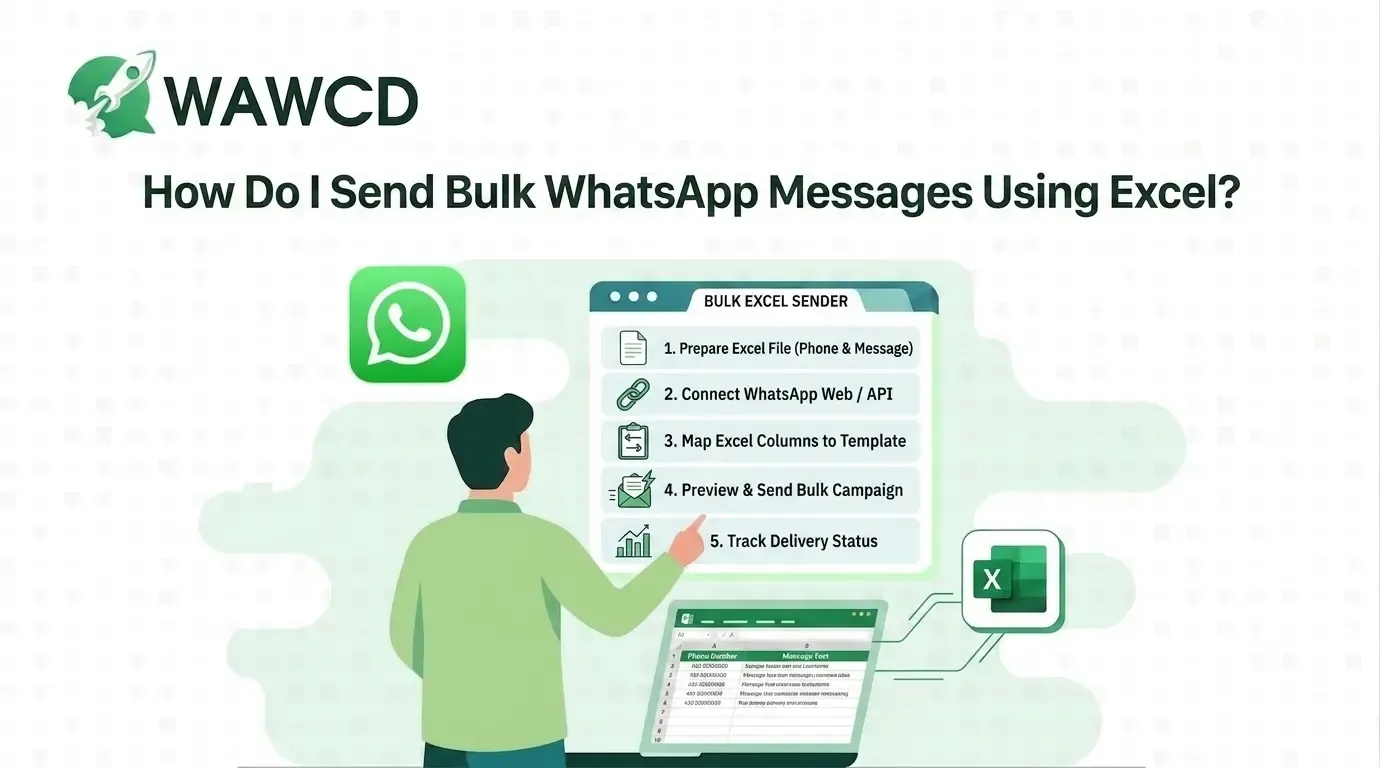
Step 1: Sign up for WAWCD (takes less than 2 minutes).
Step 2: Click on the audience Contacts or Campaigns in the broadcast section and click Import from CSV/Excel.
Step 3: Upload the CSV file, and then map the columns. Make sure that the column you are mapping contains the names, numbers, and any personalization fields.
Step 4: Create your message using variables.
Example:
“Hi {{Name}}, we have a new listing in {{City}} that matches your budget. Reply YES to learn more.”
Step 5: Preview the messages of some contacts to ensure that everything is displayed perfectly.
Step 6: Hit the send or schedule button to start the campaign or at a later time.
Step 7: Keep track of delivery progress, read receipts and responses from the dashboard of analytics.
It is recommended, as it makes use of WhatsApp's officially licensed WhatsApp Business API, reducing the chance of restrictions on accounts when your contacts have opted in and your message templates follow WhatsApp's guidelines.
Test WAWCD at no cost. Just upload your Excel spreadsheet and launch your first marketing campaign in just a few only a couple of minutes. And enjoy the best experience through send WhatsApp through Excel.
Method 2: WhatsApp Business API + Excel Automation
Business that regularly send out hundreds of WhatsApp messages on a regular basis consider the WhatsApp Business API.
Instead of uploading the spreadsheet manually, it is possible to connect Excel to the API by using tools for automation like Zapier, Make (formerly Integromat), or a custom webhook.
Example:
Sales representatives add the lead of a new customer to an Excel tracker. Once the lead is added, the automation instantly sends that customer a personalized WhatsApp welcome message with the sales representative's contact details.
This setup needs:
-
WhatsApp Business API access
-
An automation platform
-
Initial configuration
If you'd like a simple experience, select a platform with API access like WABPO and Excel integration, without the need for customized development.
Personalize Each WhatsApp Message Using Your Excel Data:
Bulk messaging doesn't have to feel robotic. When you map Excel columns to variables for messages, recipients receive a personal message.
With no Personalization: Dear Customer, we've got the latest offer for our customers.
With Personalization: Hello Priya, thank you for your purchase of 3 clips. They will be delivered on time. Expected delivery: Thursday.
A majority of software uses double curly brackets for inserting variables.
How to Send Bulk WhatsApp Messages from Excel Without Getting Banned
Try these four top techniques:
-
Send messages only to opted-in contacts: Don't buy phone lists or make unsolicited calls.
-
Utilize an API-based system: for sending over 200 messages, it is more secure and provides less risk to your account.
-
Make use of approved template messages: Send outbound or promotional messages rather than random marketing messages.
-
Always provide an opt-out feature: Include "Reply STOP to unsubscribe" to allow recipients to effortlessly stop future communications.
These guidelines will help protect your WhatsApp account and your customers' experience, and you can easily send WhatsApp through Excel.
Does It Work with Google Sheets Too?
Yes. It's almost the same.
Just download the spreadsheet as a CSV by using
File - > Download - > CSV
Then, transfer it to the server by following the same procedure that is described in Method 1.
Most WhatsApp bulk messaging platforms accept CSV files regardless of whether they were created in Microsoft Excel, Google Sheets, or another spreadsheet application.
Conclusion
Send WhatsApp through Excel is much easier than many business owners think. If you prepare your spreadsheet properly and select the appropriate way to send messages and contact only those who have signed up, you can create effective campaigns that aren't a stress. The majority of users upload a CSV document to a WhatsApp bulk emailer is the quickest and most secure option.
You can upload your Excel spreadsheet into WAWCD and start sending your first mass WhatsApp campaign today for free. There is no payment or API set-up needed.
Frequently Asked Questions
1. Can I send WhatsApp messages directly from Excel without any tool?
No, Excel keeps your contact information; however, it cannot transmit WhatsApp messages on its own. It will require a bulk messaging platform, a Chrome extension or WhatsApp Business API integration.
2. What format should phone numbers be in my Excel file?
Make use of the complete international format using the country code without spaces or brackets, or a plus sign.
3. Will WhatsApp ban my account for sending bulk messages from Excel?
Using official API-based platforms, messaging opted-in contacts, and following WhatsApp's messaging policies greatly reduces the risk. Unofficial automation tools carry a higher risk.
4. Can I personalize each message using data from my Excel columns?
Yes. Most bulk messaging platforms let you insert variables like {{Name}}, {{City}}, and {{OrderID}} directly into your message template.
5. What is the maximum number of WhatsApp messages I can send from Excel at once?
The limit depends on the platform you use and your WhatsApp Business account tier. API-based solutions can handle thousands of messages, while browser extensions are better for smaller batches.